Up next in 10



If you have a Roku device, these are the settings and features you need to know about to get the most out of your streaming media player. Roku devices are my #1 pick for first-time streamers because they're inexpensive and easy to use. These tips and tricks will make your Roku experience even better. See a written version of this list here: https://michaelsaves.com/streaming/change-roku-settings/
The best thing about Roku's OS 11.5 update: https://www.youtube.com/watch?v=nPLDA-Ms9eQ
New feature alert! See how to set up a custom screensaver with Photo Streams: https://www.youtube.com/watch?v=dRBem66ImVQ
CHAPTERS:
0:00 Program Personal Shortcuts
1:06 Add, Move and Delete Channels
1:42 Limit Ad Tracking
2:15 Unlock Featured Free Content
2:34 Live TV Zone
3:01 Find Things Faster
3:33 Voice Commands
3:58 Adjust Menu Clicks
4:17 Sound Leveling
4:47 Roku Remote App
5:16 Private Listening
5:49 Instant Replay
Show More Show Less View Video Transcript
0:00
These are all of my Rokus, and this is a viewer request
0:04
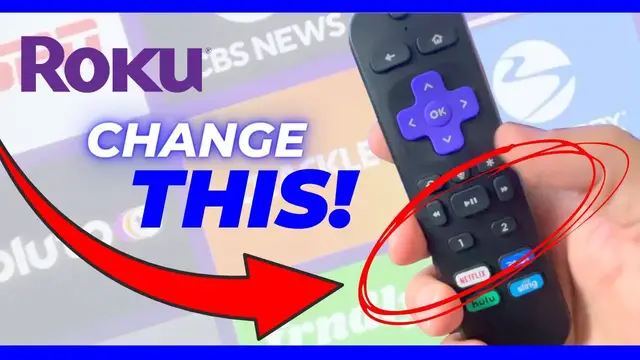
The Roku settings and features that you need to know about. Number one, program personal shortcuts
0:10
Unfortunately, you cannot program the four branded shortcut buttons at the bottom of your remote
0:16
but some higher-end Rokus, like the Ultra, have personal shortcuts. That's the number one and two
0:23
Watch here as I press the microphone button and then make a command
0:27
Launch YouTube TV. and once the app is loaded, I can press and choose the personal shortcut of my choice
0:36
In this case, I'll press and hold number 2, select YouTube TV, and then press 2 again
0:41
Now we'll exit the app, and going forward, I can always just press number 2 and launch YouTube TV
0:50
And you can change the personal shortcuts whenever you want, just repeat the steps
0:54
If your Roku doesn't have the personal shortcuts and you really want this feature
0:57
you can always pick up the Roku Voice Remote Pro. It's a rechargeable remote with voice controls plus those personal shortcuts
1:06
Number two, add, move, and delete channels. You probably already know how to add channels
1:11
There's a shortcut right from the home screen. But if you want to move a channel, hover over the app
1:17
We'll use Voodoo for this example. And then take out your remote and click the star button
1:22
arrow up to move channel, and then use the arrows to move the channel wherever you want
1:28
on your home screen. Click OK when you've set it in place. Let's say you don't want the Voodoo app
1:34
on your home screen at all. You can take out your remote again, click the star button, and then just
1:40
go to remove channel. Number three, limit ad tracking. From the navigation menu on the left
1:46
Just scroll down to Settings then Privacy and Advertising Here you see the option to limit ad tracking Now to be clear this does not eliminate ads that you see on Roku Selecting this option will just mean that you will not get personalized
2:02
ads from Roku. Before you decide to do this, just read the fine print to really get a full
2:08
understanding of it. And if you decide to limit ad tracking, you may also want to reset your
2:13
advertising identifier too. Number four, featured free. Roku's featured free section is a great way
2:20
to discover ad-supported content, including some live TV, that's available at no charge
2:26
Now, this is a hub for free content across various apps, not just the Roku channel
2:32
but there's plenty of stuff from there here. Number five, LiveZone. And this is a newer feature
2:38
When you select LiveZone from the left navigation on the home screen, you'll be taken to this area
2:43
Look here, the Live TV Channel Guide features more than 200 free channels
2:50
But if it's cable TV networks that you're looking for, those require a subscription
2:55
and LiveZone has shortcuts to cable TV alternatives, the ones that I talk a lot about here on this channel
3:01
Number six, find things faster. Featured Free and LiveZone, those are great for browsing, but search is much faster if you know what you're looking for
3:11
Of course, you can type using your keyboard on your TV or use the Roku app on your phone
3:18
But if your Roku supports voice search even better, press and hold the microphone button that's right in the center and then make your command
3:26
The Office. There's the office, and when I click OK, I'll see the app needed to stream it
3:33
Number seven, voice commands. Many newer Roku devices support voice commands. I'm back in the YouTube TV app to explain
3:41
and this app does not display the time. But you can use that microphone button once again and ask what time is it It 12 p Voice commands are also great for things like turning on closed captioning and launching apps too
3:59
Number eight is next, but can you give me a like if you're getting something out of this video so far
4:02
Let's keep going. Can't stand the clicking sound? Navigate to Settings, then Audio, then Menu Volume
4:11
and then you'll have the option to change it from high, medium, low, or even turn the clicking off
4:17
Number nine, sound leveling. I've opened the YouTube app on Roku for this demo
4:22
because this is an app where audio levels can be all over the place
4:26
From any app, click the star button on your remote and then sound settings
4:31
When you click through, you'll see an option for volume leveling. Most of the time, I like to have this on leveling
4:38
It will smooth out the audio. You can also test out the night mode feature, but just remember to switch it back to leveling
4:45
I keep that on most of the time. Number 10, Roku Remote App
4:49
Check out the Roku app on my iPhone. It's available for Android too
4:53
And you can download this app. It comes in handy if you lose your remote or maybe the batteries go dead
4:59
Because look at the bottom of the screen, you see an option for a remote. And when I click on that, a remote pops up
5:05
And you can use this just like your normal Roku remote to control your Roku
5:10
Some people, in fact, even like this better because of the big buttons on the mobile remote
5:16
Number 11, private listening. Here's another use for that Roku app. I'm back here on the remote, but if I toggle to the settings that's in the upper left
5:24
you'll see there's an option for private listening. I can toggle that on, and then I'll be able to listen through my phone, but watch on my TV set
5:34
And as an alternative, some Roku remotes have headphone jacks built in on the left side so that
5:39
you can listen privately and not disturb the people around you If your Roku doesn have this that may be another reason to try out the Voice Remote Pro Number 12 Instant Replay Did you miss something Just want to see it again
5:53
I'm in the Discovery Plus app at the moment, and I'm going to use the Instant Replay function. It's
5:57
this button to the left of the microphone, and then it goes back 10 seconds to replay the video
6:04
If you want to see captions for instant replays, go to Settings, Accessibility, and Captions mode
6:10
then select on replay. Number 13, declutter the home screen. I talked earlier about adding
6:17
moving, and removing apps, but this is different. See all of these shortcuts on the left navigation
6:22
of the home screen? Things like Featured Free, Live TV, plus Movie Store and TV Store. You can
6:30
actually hide some of these shortcuts if you want to. Just go to Settings, Home Screen, and then
6:35
you'll see a list of the ones that you can hide. For example, I never use the My Authors section
6:41
so I'm just going to switch that to Hide. And then it's no longer displayed on my home screen
6:47
Number 14, change your screensaver. If you're tired of the same old Roku theme
6:53
there's a solution. We'll go back to Settings, then Theme, and browse our options. Each theme
6:59
that you see here has unique wallpaper, screensaver, and sounds too. I'll swap out the default theme for
7:05
jungle and take a look at it now. And if you don't like the changes you made, you can always go right
7:11
back to the factory default. Number 15, guest mode. This is great if you've got guests staying over at
7:17
your house. I'm making my way to settings, down to system, and then guest mode. Once you activate
7:24
guest mode, your visitors can log in and use their own subscriptions, but with your device
7:30
It's a great way to let your guests share your Roku device, but not account credentials
7:35
and any subscriptions that you may have. Got anything to add? I'll be checking your comments below
7:40
and I thank you for watching
#Voice & Video Chat