0:00
Fubo recently updated its app, so I signed up for a month of the live TV streaming service
0:05
to see what's new. And it turns out, Fubo has some features that I like better than YouTube TV
0:12
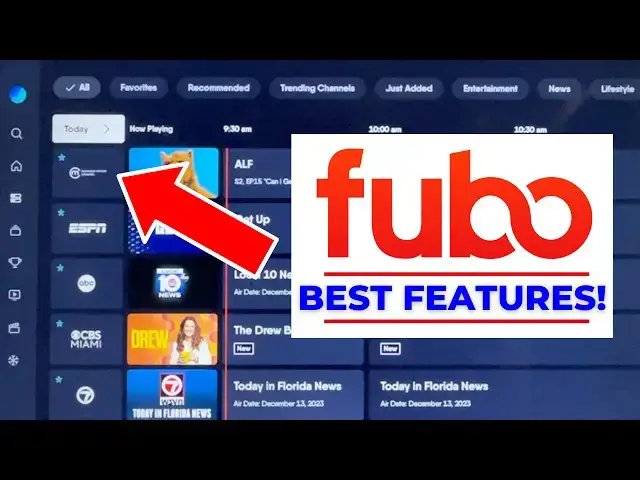
Let me show you. Number one, favoriting channels. I'm going to start with the live guide
0:17
And one of the best things about Fubo is that you can favorite a channel right from your TV set
0:23
I'm using a Roku Ultra to demonstrate today. When I select a channel logo along the left of the screen
0:30
you see the option Add to Favorites. It's right below Play Channel
0:34
And all the channels that you favorite appear toward the top of the main live guide
0:39
But look here, you can also filter the live guide using the options along the very top of the screen
0:45
And that way, you can only see your favorite channels. Want to reorder your favorites? Well, you can do that too
0:51
And if you don't see this option from a TV set, log into Fubo from a computer
0:56
Then from the guide page, select Reorder Your Favorites. And from here, it's as simple as dragging and dropping your favorite channels
1:04
up and down to any position that you want. Just remember to click Save, and these changes will be reflected across all devices
1:12
Number two, live guide navigation. I'm sticking with the live guide to make my second point
1:17
Notice here how it says Today above the top channel in the guide
1:21
We'll select that, and you're going to see options to change the date up to a week ahead
1:26
This Jump Today feature, it's a great one, especially if you want to preview content
1:30
set some recordings, but you can always manually scroll ahead if you prefer
1:34
Do that by clicking to the right, and watch as I click the Fast Forward key on my Roku remote
1:40
Then it skips ahead a lot faster. And this Fast Forward trick, it also works to quickly scroll through the channel lineup
1:47
Highlight a channel logo and click Fast Forward to page down. Another live guide tip, press the Replay key on a Roku remote
1:56
and then it'll show this live marker, the red line here. And if you ever want to return to the top of the live guide
2:02
right where you began, it only takes a click. Just press Back to do that
2:06
Number three, browse while watching. Let's say you want to channel surf without going back to the main live guide or the home screen
2:14
Well, you can do that with Fubo. Watch here. I press Down while watching live TV, and this mini guide appears
2:20
From what I can tell, channels appear in the same order as the main live guide
2:25
And you also have those familiar sorting options, including Favorites. From here, your options are to select a new program to watch
2:32
or you can always click Back to dismiss the mini guide. We're up to number four, and that's background play
2:39
This next tip is for people watching live TV, but they do want to go back to the main live guide or even the home screen
2:46
I'll start with the live guide, then I select a program to watch
2:50
Next, I'll click Back to return to the live guide. With Fubo's app, audio from the show that I was previously watching
2:57
it continues to play in the background while I channel surf. To return to the program I was watching, I just have to hold Back on my remote
3:05
just as the prompt in the corner of the screen indicates. Number five, return to last channel
3:10
A whole lot of people ask me about this feature, and it's another one that Fubo has
3:15
Here I am on ESPN. We're going to call this Channel 1
3:18
and now watch as I switch to Channel 2, in this case, ABC
3:22
If I want to go back to Channel 1, I just press and hold the Back key. Simple as that
3:28
Number six, manage DVR recordings. When you set a recording with Fubo, you've got options
3:34
You can record a single program or an entire series, and for sports
3:39
record a single game, all games from a specific team, or an entire league
3:45
This flexibility also extends to deleting recordings, highlight an individual program or game to delete it
3:52
or delete all recordings to free up even more storage space. Number seven, multi-view
3:59
Yes, Fubo does have multi-view, it's just not available on all devices
4:04
And that's why I've switched from my Roku to an Apple TV for this section of the video
4:09
With a supported device, Fubo lets you watch up to four channels on a single screen
4:15
When you're watching live TV, press down, you'll see the option to watch in multi-view
4:20
and from there, you can browse the mini-guide and add additional channels
4:24
Completely customizable, that's great, but for tech reasons, it's not supported on all devices
4:30
I update streaming deals on my website, michaelsafedeals.com. Thank you for watching today, and I hope to see you back here soon