Up next in 10



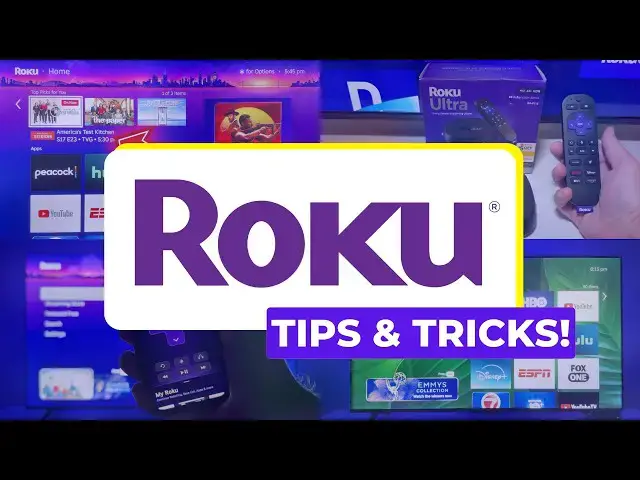
Learn 15 Roku tips, tricks and settings to get the most out of your device in 2025. From choosing the right Roku model and remote, to setup, hidden features, audio fixes, and the mobile app, my updated guide will help you save money and improve your streaming experience.
🚨 Get the latest deals and free trials: https://michaelsavesdeals.com/
📺 Compare live TV services: https://michaelsaves.com/streaming/best-live-tv-streaming/
💻 Find a better internet plan: https://michaelsaves.com/internet-plan-comparison-tool/
Start your regular Amazon shopping with my link to support the channel: https://www.amazon.com/shop/michaelsaves
NOTE: This description box includes an affiliate link. If you use my link, I may receive a small commission. It helps offset the 80% decline in YouTube revenue my channel has experienced since November 2022.
FOLLOW MICHAEL SAVES:
Website: https://michaelsaves.com/
Deal Alerts: https://michaelsavesdeals.com/
Newsletter: https://michaelsaves.beehiiv.com/
Facebook: https://www.facebook.com/themichaelsaves
X (Formerly Twitter): https://twitter.com/michaelsaves
Buy Me a Coffee (Support the Channel): https://buymeacoffee.com/michaelsaves
Show More Show Less View Video Transcript
0:00
These are just some of the Roku
0:02
streaming devices that I've put to the
0:04
test over the years. And with so much
0:06
changing, it's time for a reset. Today,
0:09
I've got 15 Roku tips, tricks, and
0:12
settings that you need to know. Starting
0:15
with number one, my updated Roku buying
0:18
advice. I'm not going to waste a second
0:20
of your time, and the Roku Ultra is the
0:23
number one device that Roku makes. It's
0:26
the fastest, has the best remote, and
0:29
yeah, it's the most expensive. In my
0:32
opinion, worth it, though, if you want a
0:35
premium streaming experience. If you're
0:38
on a budget or just starting out with
0:40
Roku, you may want to go with one of the
0:42
more affordable streaming sticks. That's
0:45
exactly what I did years ago. Just avoid
0:48
the base model. For only a few bucks
0:50
more, the streaming stick plus gives you
0:54
4K video, and that'll help futureproof
0:57
your setup for years to come. When it
0:59
comes to buying a new Roku, two quick
1:02
rules I always follow. First, buy the
1:05
latest model year, never a discontinued
1:08
device. And second, only buy a new
1:11
device when it's on sale. Next up today
1:14
is a scam alert. And unfortunately,
1:16
there are people who will try to trick
1:18
new Roku users into paying for setup or
1:22
activation. Don't fall for it. That's
1:25
all free with Roku. You only have to pay
1:28
for the device and setup. It takes about
1:31
5 minutes or so. And during the setup,
1:33
you're going to be asked to add payment
1:35
information for Roku Pay, but that's
1:38
optional and I never use it. Roku Pay is
1:42
only needed if you want to sign up for
1:45
subscriptions through Roku. I said I
1:48
don't do that and it's because you will
1:50
almost always find better deals signing
1:52
up from the streaming services directly.
1:56
And after Roku's big data breach, I
1:58
deleted my payment information
2:00
completely. You can do it anytime from
2:03
your account settings. And if you want
2:05
some extra protection, set up a
2:07
fourdigit PIN that prevents unauthorized
2:10
purchases and you can also use it for
2:14
parental controls. So lately, a lot of
2:17
new streaming apps have launched and
2:19
I've been hearing from people who say
2:20
they can't find them on their smart TVs.
2:24
This is a problem you are not likely to
2:27
find with Roku. Now, Roku doesn't
2:30
support every single app, but because it
2:32
is so popular, most app developers are
2:36
going to want to make sure their app is
2:38
available there. It's a good idea to
2:40
double check before you buy. Just search
2:42
the Roku channel store from its website.
2:45
I'm going to take you to the Roku home
2:47
screen now. We'll talk about some new
2:49
ways that you can customize it. You're
2:52
going to get the same Roku interface no
2:54
matter which device you buy. And for
2:57
years, I've recommended Roku largely
2:59
because of what you're seeing here. The
3:01
big tiles make it easier to get to your
3:04
apps quickly. But I'll admit, over time,
3:07
Roku's home screen has gotten a lot more
3:09
cluttered. So, let's clean it up. If you
3:12
don't like this recommendation row at
3:14
the top, you can hide it. Just go to the
3:16
settings, then home screen. And while
3:19
you're there, you can also change the
3:21
size of the tiles, three columns or
3:24
four. With four, you're going to see
3:26
more apps without having to scroll. And
3:29
on the left side of the screen, Roku's
3:32
added menus for discovering both free
3:34
and paid content. You can hide those,
3:36
too, if you want a more simple layout,
3:39
but I suggest keeping at least featured
3:42
free. And when it comes to the home
3:43
screen, I do have a tip that's actually
3:46
helped keep my streaming costs under
3:48
control. Just move your paid streaming
3:51
apps to the very top. Highlight the app,
3:54
press star on your Roku remote, and
3:57
choose move app to top. I go through
3:59
this process about once a month or so,
4:02
and if I notice I'm not using a paid app
4:04
very often, I'll just cancel it. And
4:07
then I just move another app, sometimes
4:09
a free app, to take its place toward the
4:12
top. And while we're talking about apps,
4:14
the Roku channel is one of the free ones
4:17
that I've recommended for a long time.
4:19
But recently, there's been a change.
4:21
Roku is starting to build out its own
4:24
paid apps. The company recently acquired
4:27
Friendly TV, a budget friendly live TV
4:30
service, and it also launched Howdy,
4:33
which is basically an ad-free version of
4:36
the Roku channel for people who like its
4:38
library but don't want commercials. So,
4:41
expect to see a lot more of these apps
4:44
while browsing the platform. We just
4:46
talked about all those changes you can
4:48
make to the home screen, but there's one
4:50
thing I can't really help you with, and
4:53
that's the ads. Roku's been testing a
4:56
lot more ads lately, and two you can
4:58
count on. One on the left side of the
5:00
home screen, and another here on the
5:03
right side. I've learned to pretty much
5:05
tune these out, but there are a few ways
5:07
that you can control the type of ads
5:10
that you see. From settings, go to
5:13
privacy and then advertising. And here
5:16
you'll find options to opt out of
5:18
certain ad categories. And you can also
5:21
choose whether to see personalized ads
5:24
across the Roku platform. Just know
5:27
either way, you are still going to see
5:30
the same number of ads. And if these ads
5:33
are a deal breaker for you, consider an
5:36
Apple TV streaming device instead. Its
5:39
home screen doesn't have ads at all. You
5:42
know, I only suggest getting a Roku
5:44
device that has a remote that includes
5:46
voice controls, like this one right
5:48
here, because it really makes your
5:50
streaming experience a lot easier. I'll
5:53
explain. With content spread across so
5:55
many apps, you may spend a lot of time
5:57
searching for games, shows, and movies.
6:01
But you do not have to type with this
6:03
onscreen keyboard. Just press the
6:06
microphone on your remote and talk.
6:09
Search for a specific program, actor, or
6:12
genre, and Roku is going to show you
6:14
what's available across different apps.
6:17
And while you're watching TV, you can
6:19
also use voice commands to control
6:21
playback. So, rewind, fast forward,
6:24
pause, and also turn on closed captions.
6:28
So, take a look at these two remotes
6:30
side by side, and they may not look all
6:32
that different at first glance. But
6:34
there are a few reasons why I prefer the
6:37
one on the right side. This is the Voice
6:40
Remote Pro, and it comes with the Roku
6:43
Ultra, but you can also buy it
6:45
separately. Just a few highlights. It's
6:48
back lit, perfect for nighttime viewing.
6:51
Rechargeable, so no more batteries. You
6:54
get quick access to Roku's live guide
6:57
and customizable shortcuts. I've got one
7:00
set up for YouTube. And with this
7:02
remote, voice controls are hands-free.
7:05
You don't even need to press the
7:07
microphone. This next section has three
7:10
quick tips, and they're all related to
7:12
audio. If you've noticed inconsistent
7:15
audio, like when a commercial is louder
7:17
than the show, here's what you can do.
7:20
Open any app, start playing a video, and
7:23
then press the star key on your Roku
7:26
remote. arrow to the right until you see
7:29
this volume leveling and then just turn
7:32
it on. Next up, the clicking sound while
7:35
you're navigating. Is it driving you
7:37
crazy? Well, go to settings, audio, then
7:40
menu volume to adjust it or turn it off
7:43
completely. Usually, I keep mine on low.
7:46
You're doing the button call and free.
7:49
And if you suddenly hear a woman's voice
7:51
reading everything on the screen, don't
7:54
panic. That's Roku's screen reader, and
7:57
you probably activated this one by
8:00
mistake. To turn it off, go to settings,
8:03
accessibility, and then screen reader.
8:05
Or you can just press the star key four
8:08
times quickly. A lot of us aren't just
8:11
watching on a TV set. We've got phones
8:13
in our hand at the same time. And Roku's
8:15
got a mobile app that's worth
8:17
downloading for a few reasons. Some
8:20
people may find it easier to search for
8:22
content through the mobile app. and
8:24
maybe add it to your save list to watch
8:26
later. There's also the mobile remote.
8:29
It's helpful and not just if you've lost
8:31
your physical remote. On the remote
8:33
screen, click on the headphone icon.
8:36
That's for private listening. So, you
8:39
can watch on your TV, but listen through
8:42
your phone. And from the account section
8:44
of the mobile app, you can manage your
8:47
photo streams. This lets you upload and
8:50
share photos that can be used as a
8:52
personalized Roku screen saver. I really
8:56
like the photo streams feature and think
8:58
it's actually easier to use on the
9:00
mobile app compared to the website. Your
9:03
pictures are probably on your phone
9:04
already anyway. And once you've uploaded
9:06
your photos from a TV set, you can go to
9:09
settings and then theme to set photo
9:12
streams as your screen saver. Or if you
9:15
don't want to upload your own photos,
9:17
choose from one of Roku's other pre-made
9:21
screen savers. And this theme section is
9:24
also where you can swap out your Roku
9:26
wallpaper for a fresh new look anytime
9:29
you want. Hope you found this helpful.
9:32
And as always, add your favorite Roku
9:34
settings and features in the comments
9:36
below. I look forward to reading them
9:38
there. And when you're looking for a
9:39
streaming deal, head to my website,
9:42
michael saves deals.com.