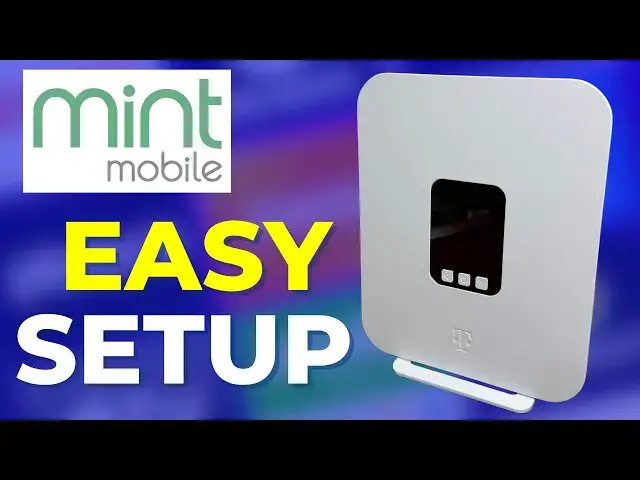
0:00
Hey everybody, I just finished setting
0:02
up Mint Mobile 5G home internet. Pretty
0:05
simple overall, but there are a couple
0:07
things that I think could trip you up.
0:09
Let's talk about it. All right, so first
0:11
of all, inside the box, you're going to
0:13
find the gateway with T-Mobile branding.
0:16
There's also a power cord and a quick
0:18
start guide, plus some units also
0:21
include a window sill bracket like this.
0:24
After connecting the power cord to the
0:25
gateway, the next step is to find the
0:28
right spot for it near a wall outlet.
0:30
And the recommendations are by a window,
0:33
on a higher floor if possible, and away
0:36
from other electronics. I've already
0:38
tested this spot on my desk. I know it
0:41
gets great coverage, so I set the mint
0:44
gateway up there and plugged it in.
0:46
After that, I pressed power, the key
0:49
right in the center. Right away, I
0:51
noticed two things. First, I already had
0:53
full bars. Now, Mint says this is not
0:56
required for the best experience, but to
0:58
me, it's a good sign. And I also saw
1:01
this QR code on the display screen to
1:04
continue setup. This is where things can
1:06
get a little bit confusing because you
1:08
actually don't need to scan that QR code
1:11
or download T-Mobile's Tife app. Just
1:14
skip that step and go straight to
1:16
connecting your devices to Wi-Fi. Now,
1:19
there's a username and password printed
1:21
on the back of the gateway. But if you
1:23
want to change your Wi-Fi name and
1:25
password, that happens in the Mint
1:27
mobile app. And this part can also be a
1:30
little bit confusing. Mint has separate
1:33
login for Mint Wireless and Mint home
1:36
internet. For the home internet side,
1:38
Mint sent me an email with a username
1:41
right after sign up, but no password.
1:44
And to fix that, you're just going to
1:45
need to choose need help logging in here
1:48
in the corner and then forgot password.
1:51
Then you can create a new password for
1:53
the internet account. And after you've
1:55
logged in to the internet account
1:57
through the Mint Mobile app, you're
1:59
going to see this option to change your
2:01
Wi-Fi name and password. And after a
2:04
quick few prompts, you can update it to
2:06
whatever you want. And one final tip, if
2:09
you've got both wireless and home
2:11
internet with Mint Mobile, make sure
2:13
that your accounts are linked. That way,
2:16
you'll receive the bundle discount. Once
2:18
I was all set up, I ran an initial speed
2:21
test and got more than 600 megabits per
2:24
second download with Mint's plan. Really
2:27
solid performance for 5G home internet.
2:30
I'll put together a full review soon.
2:32
And if you're comparing internet
2:34
options, use the free tool on
2:38
to see the plans available where you