
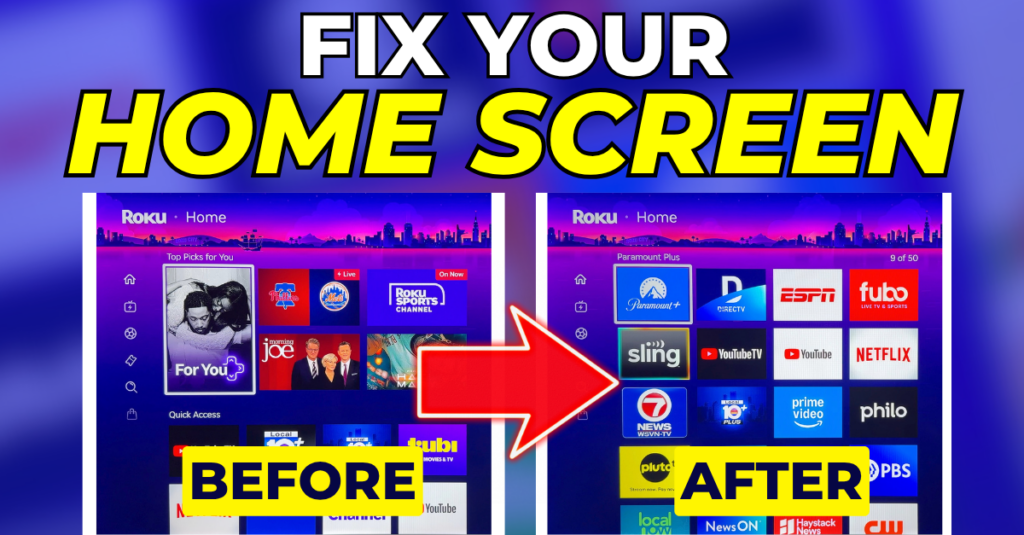
Roku’s redesigned home screen introduces more recommendations, a new Quick Access section and a few other changes that many longtime users tell me they don’t like.
Fortunately, Roku gives you some control over the new design. With a few tweaks in the Settings, you can turn back the clock on most of the changes.
Hide the Recommendation Rows
Roku now surfaces recommended content in several places on the home screen, and they may or may not reflect what you’re actually interested in.
Highlight a recommendation and press the Star button on your Roku remote. You’ll see options to tell Roku that you like or don’t like the content. Over time, that may help improve the recommendations you see.
If you’d rather hide the recommendation rows altogether:
- From the home screen, press Left to open the left-side navigation.
- Go to Settings
- Select Home Screen
- Under Recommendation Rows, choose Hide.
Hide Quick Access
After hiding the recommendation rows, you’ll notice Quick Access at the top of the home screen.
At first glance, it looks like the old app layout, but it’s not.
Quick Access is where Roku automatically rearranges apps based on your viewing habits. Think of it this way:
- Quick Access: Roku is in control
- Your Apps: You’re in control
You can make some changes to Quick Access.
Highlight an app, press the Star button and select Remove from Quick Access.
You can also scroll down to Your Apps, highlight an app, press the Star button and select Add to Quick Access.
However, you can’t lock apps into specific positions because Roku is designed to keep rearranging this section over time.
If you’d rather hide Quick Access altogether:
- Go to Settings
- Select Home Screen
- Set Quick Access to Hide
Once you’ve done that, the home screen should look much more familiar. The recommendation rows are gone, Quick Access is gone and the Your Apps section is back at the top of the screen.
Organize Your Apps
Unlike Quick Access, you still have full control over Your Apps.
Highlight any app, press the Star button and select Move App to rearrange your apps however you’d like.
I recommend keeping your most-used apps near the top, especially your paid streaming services.
If you notice that you’re rarely opening a streaming service even when it’s front and center, it may be a sign that it’s time to cancel that subscription.
Change the App Tile Size
Another setting you may want to change is the size of the app tiles.
Go to Settings > Home Screen > Tile Size.
Roku offers three options:
- Small: Five columns of apps
- Medium: Four columns of apps
- Large: Three columns of apps
Medium is the default setting. Depending on the size of your TV and your personal preference, you may find that Small or Large works better for you.
What You Can’t Change
Now that we’ve covered the customization options, there are still a few parts of the redesigned home screen that you can’t change.
Advertising remains a big part of the Roku experience, including a large ad on the right side of the home screen.
When you open the left-side navigation menu, you’ll also see an ad in the lower-left corner.
You also can’t customize the navigation menu the way you could before. Roku uses that space to highlight free and paid content.
The good news is that once you move back to the home screen, the navigation menu collapses out of the way and doesn’t interrupt your browsing.
For more streaming tips, reviews and tutorials, visit my YouTube channel.
Roku will not allow the Destinations and Jump To lines to be turned off. I find neither particularly useful and resent the fact that I can otherwise turn off all the other crap except for these two lines. I understand (sorta) that ad inclusion is inevitable and that I can live with, but I like to organize my home screen to reflect what I’m interested in. I don’t need Roku making suggestions or recommendations for me or directing me to Subscription or Sports, etc, services. For those who like and use Destinations and Jump To, fine, just give others of us the option to turn them off.
The move apps feature doesnt work. It keeps suto rrranging the icons. Its really annoying. I turned off all the junk ads but moving icons will not remain where I want them to stay.
Move apps does work in the Your Apps section. The Quick Access section is the one that auto arranges.