
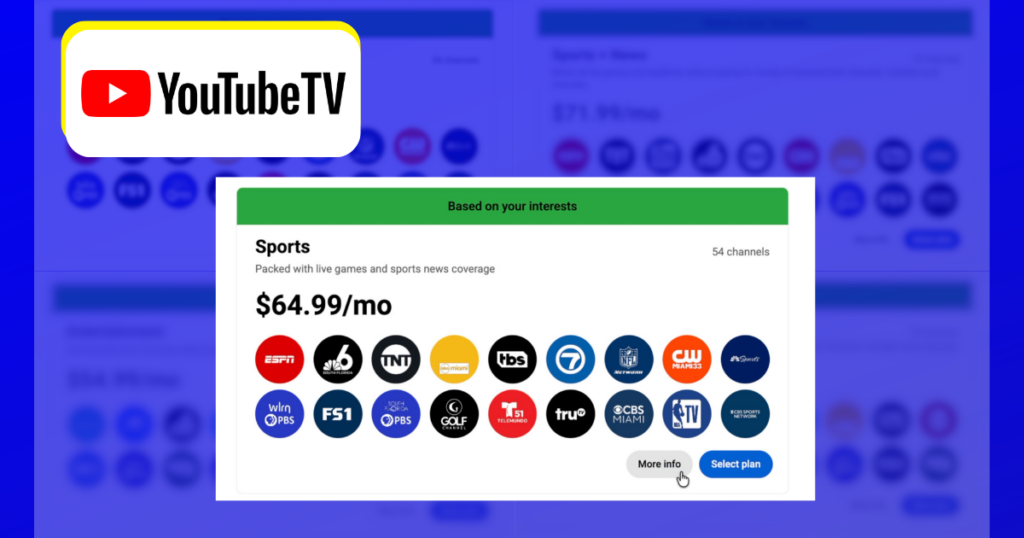
YouTube TV launched 12 genre-specific plans in early 2026 that are cheaper than the main live TV bundle.
If you’re thinking about downgrading from the main YouTube TV plan to one of the new options, there are a few things you need to know.
I just went through the switching process, so I put together this quick guide to help you.
Where to Switch Your Plan
You’ll need to go to tv.youtube.com and sign in to your account. Don’t try to do this from the mobile app. When I did, I couldn’t find the plan options at all.
Once you’re logged in from a web browser, go to Settings and click Explore Plans. You’ll see the new plan options right next to your current plan.
One important note: Only the family manager (primary account holder) can make plan changes. If that’s not you, you’ll need to hand this off to whoever manages the account.
Navigating the New Plan Lineup
YouTube TV’s 12 new plans are built around four content categories: Live Sports, Entertainment, News, and Family, with local channels included in every plan.
You can pay for only the categories you want, but not only the individual channels you watch.
When you first land on the plans page, YouTube TV will show you a recommendation. In my case it was Sports and News, followed by a few other plans.
To see more of the options, I scrolled to the bottom and clicked Find a Plan.
From there, select the categories you want and YouTube TV will show you the matching plan. These are all 12 of the genre-specific plans.
In addition to the plans below, the YouTube TV main plan is still offered for $82.99/month.
- Sports: $64.99/month
- Sports + News: $71.99/month
- Sports + Entertainment: $71.99/month
- Sports + Family: $71.99/month
- Sports + News + Entertainment: $77.99/month
- Sports + News + Family: $77.99/month
- Sports + Entertainment + Family: $77.99/month
- Entertainment: $54.99/month
- News + Entertainment: $62.99/month
- Entertainment + Family: $62.99/month
- News + Entertainment + Family: $69.99/month
- News + Family: $62.99/month
Note: There are no News only or Family only plans. Those categories are only included in other bundles.
Click More Info to see which channels are included. I found it helpful to use the filters inside that view to browse by category rather than scrolling through a wall of channel logos.
Once you find the right plan, click Select Plan and get ready for the fine print.
What Happens to Your Billing
When you switch YouTube TV plans, the change takes effect immediately. It does not wait until the end of your current billing cycle.
Here’s what that meant for me:
My main YouTube TV plan renewed on the 28th of the month. When I switched to the Sports plan on the 9th, my billing date changed to the 9th going forward.
YouTube TV does give you a credit from your old plan. In my case, the new plan was $65, but I only paid $26 for the first month because of a $39 credit from the days remaining on my old plan.
The key fine print: Credits are capped at the price of the new plan and do not carry over to future months. It’s not a prorated refund. It’s a one-time credit applied to your first bill on the new plan.
If you have any add-ons, those carry over to the new plan but the billing date of the add-ons will not change.
The Most Important Warning: Promos
If you’re currently on a promotional price, whether it’s a retention offer or a signup deal, switching plans will cancel that promo immediately.
I was on a promotional price at the time, and switching plans to show you this process cost me that discount.
The smart move: Wait until your promo period ends before switching plans.
What Happens to Your DVR
The features you’re used to, including family sharing, multiview, and unlimited DVR storage, are all available with the new plans. But there’s a catch with the DVR.
Your DVR is tied to the channels available in whatever plan you sign up for.
When I switched from the main plan to the Sports plan, recordings I had set for news, entertainment, and family content were no longer viewable. I got an error message that said “The video is not available.”
If that happens to you, there is a 21-day window to upgrade your subscription and regain access to those recordings.
Switching vs. Canceling
When you go to manage your plan, you’ll notice YouTube TV prominently displays the new plan options before showing you the pause and cancel buttons.
That’s intentional. They’re trying to keep you as a customer by showing you cheaper alternatives before you leave.
And although switching takes effect immediately, that’s not the case when you pause or cancel. Those changes kick in at the end of your billing cycle.
If you want to remove access right away after canceling, you can contact YouTube TV support.
The Bottom Line
Switching YouTube TV plans is straightforward once you know where to go and what to expect. The short version:
- Do it from a web browser at tv.youtube.com, not the app
- Your new plan starts immediately, not at the end of your billing cycle
- You’ll get a credit, but it won’t carry over if it exceeds the new plan price
- If you’re on a promo, wait until it expires before switching
- DVR recordings from removed categories become inaccessible
Have questions about the new YouTube TV plans? Drop them in the comments below.
I got Sunday ticket- my wife is in my YouTube account she went to add YouTube to the family accounted going thru my I’d.me and she got the year discounted price for the base plane -she went to get her cc and had to reopen the page and it was gone now she can’t get it back – only 3mos of discounts- she did not apply the plan yet she is punished to get it again? What the hell?